Unifi Protect Cloudkey Gen2 Plus - No Disk Fix

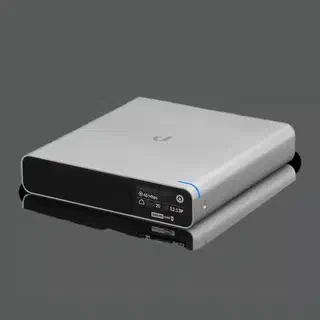 Unifi Protect Cloudkey Gen2 Plus
Introduction
After updating the Cloudkey Gen2 Plus to UnifiOS 5.0.15, I noticed that Unifi Protect lost its disk. You could still watch cameras live, but all recordings were gone and no new recordings were being made. The storage section in Unifi Protect showed no disk at all.
I encountered this issue on two different Cloudkey Gen2 Plus devices and ended up fixing them in two different ways. Both methods are described below.
What is happening
The Cloudkey Gen2 Plus uses a symlink at /srv to point to the volume partition where Unifi Protect stores its recordings. After the update to UnifiOS 5.x, this symlink was no longer pointing to the correct location. As a result, Protect could not find its storage and fell back to live-only mode.
After some research, including the official Ubiquiti community release notes, it turned out that there are two ways to fix this. The first method repairs the symlink via SSH without losing recordings. The second method is a reformat, which is quicker but will erase all existing recordings.
Method 1: Repair the symlink via SSH (keeps recordings)
The fix requires SSH access to the Cloudkey Gen2 Plus. You can enable SSH in the UnifiOS settings under System > Advanced.
Once SSH is enabled, log in as root:
ssh root@<ip-address-of-your-cloudkey>
Step 1: Stop all services
Before making any changes to the symlink, stop all services to make sure nothing is actively using the paths:
unifi-os stop
Step 2: Identify the correct volume
Run the following command to see which volumes are available on the internal disk:
df -h | grep /dev/sda
You will get output similar to this:
/dev/sda2                       16G  460M   15G   3% /volume/a9bcf25f-0eac-4a4f-9696-ccfca370f9a7
/dev/sda3                       32G  550M   31G   2% /volume/f3bc18d7-236e-470c-9f8f-cd9b3b601d4d
/dev/sda4                      865G  787G   70G  92% /volume/07e52522-eca6-426c-b737-7ae09a9cb3cd
The largest partition is the one you are looking for. In this case it is /dev/sda4, mounted at /volume/07e52522-eca6-426c-b737-7ae09a9cb3cd. This is where all the Protect recordings are stored.
Note: The UUID in the volume path will be different on your device. Use the UUID from your own output.
Step 3: Create the new symlink
Create a new symlink called /srv1 at the root level that points to the .srv folder inside the recording volume:
ln -s /volume/07e52522-eca6-426c-b737-7ae09a9cb3cd/.srv /srv1
Step 4: Replace the broken symlink
Navigate to the root directory and swap out the old broken srv with the new symlink:
cd /
mv srv srv2
mv srv1 srv
This renames the old srv to srv2 as a backup, and then renames the new symlink srv1 to srv.
Step 5: Reboot
reboot
After the reboot, Unifi Protect will pick up the storage again and your recordings will be back.
Method 2: Reformat the disk (loses recordings)
On my second Cloudkey Gen2 Plus I took a different approach. If you do not need to keep the existing recordings, this is the quicker option.
- In the UnifiOS interface, go to Unifi Protect > Storage and click Reformat.
- After the reformat completes, do a reboot.
- After the reboot, Unifi Protect will show a message that the disk is not formatted yet. Click Format to format the disk.
- Unifi Protect will start up normally and begin recording again.
Note: This method will erase all existing recordings. Only use this if you do not need to keep them or if you do not have old recordings on the disk worth keeping.
Result
Both methods resolved the issue. With Method 1, all existing recordings remained intact after the reboot. With Method 2, Protect started fresh with an empty disk but was fully functional again immediately.
Conclusion
The UnifiOS 5.x update on the Cloudkey Gen2 Plus can break the storage symlink for Unifi Protect, leaving you with live-only access. Depending on whether you need to keep your recordings, you can either repair the symlink via SSH (Method 1) or reformat the disk (Method 2). If you go with Method 1, make sure to use the correct UUID from your own df -h output since it will be different on every device, and stop all services before making changes to avoid any issues.